

TL;DR
Let's Do It Together!
Step 1: View Unallocated Work Items
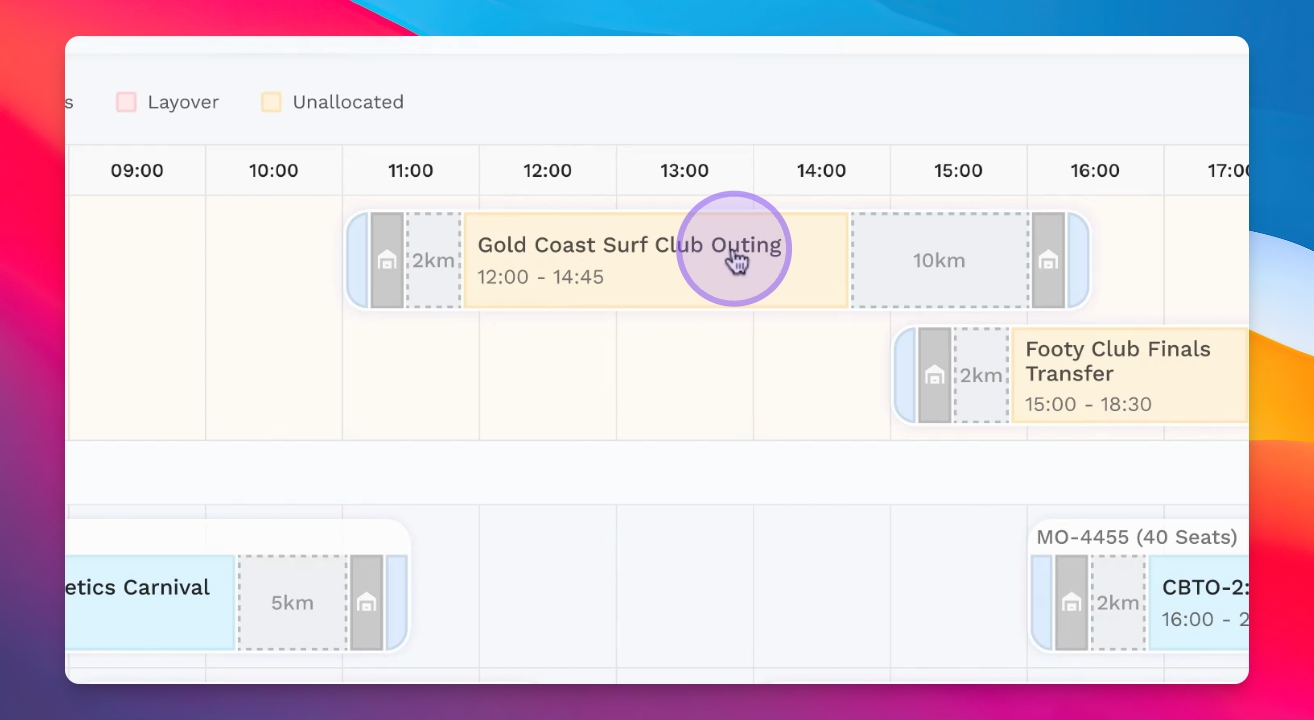
Access the Daily Allocation View to see your unallocated work items.
Observe any layover times, pre/post check times, depot pull in/out icons, and dead runs in blue.
You will see details like the distance and layover times for each job.
Step 2: Click on Unallocated Work
Click on the unallocated work item to let the platform optimize allocations automatically.
The platform will adjust based on current allocations for better efficiency.
Step 3: Recalculate Dead Runs
Review adjustments like reducing dead run kilometers.
Observe the new layover times after optimization.
Optimized routes will show reduced distances and improved layover times.
Step 4: Show Current and Proposed Allocations
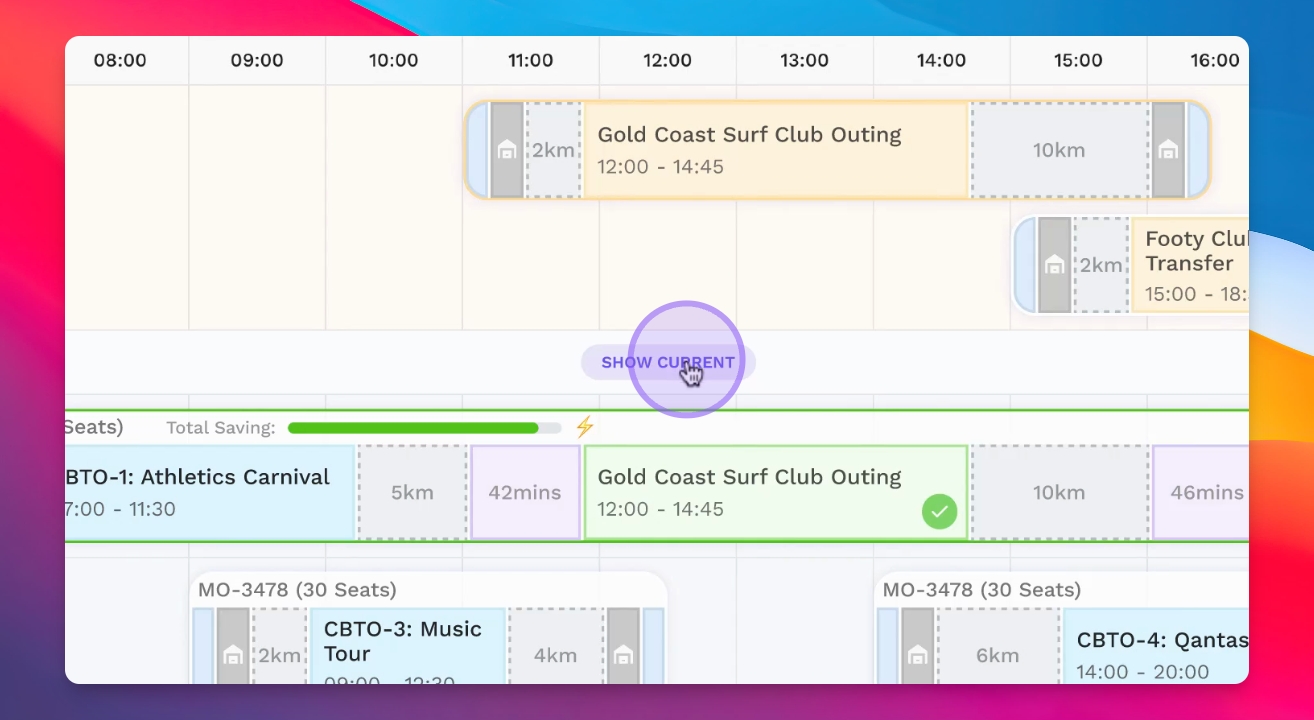
Click on Show Current to view the existing allocations.
Then, click Proposed to see the new proposed allocations.
This helps in comparing current versus proposed allocations visually.
Step 5: Explore Additional Allocation Options
Look at other options for allocation displayed at the bottom.
Review standard allocations like that to Ethan Thomas.
Step 6: Review Total Savings
Check the Total Savings Bar for an overview of optimal allocations based on cost.