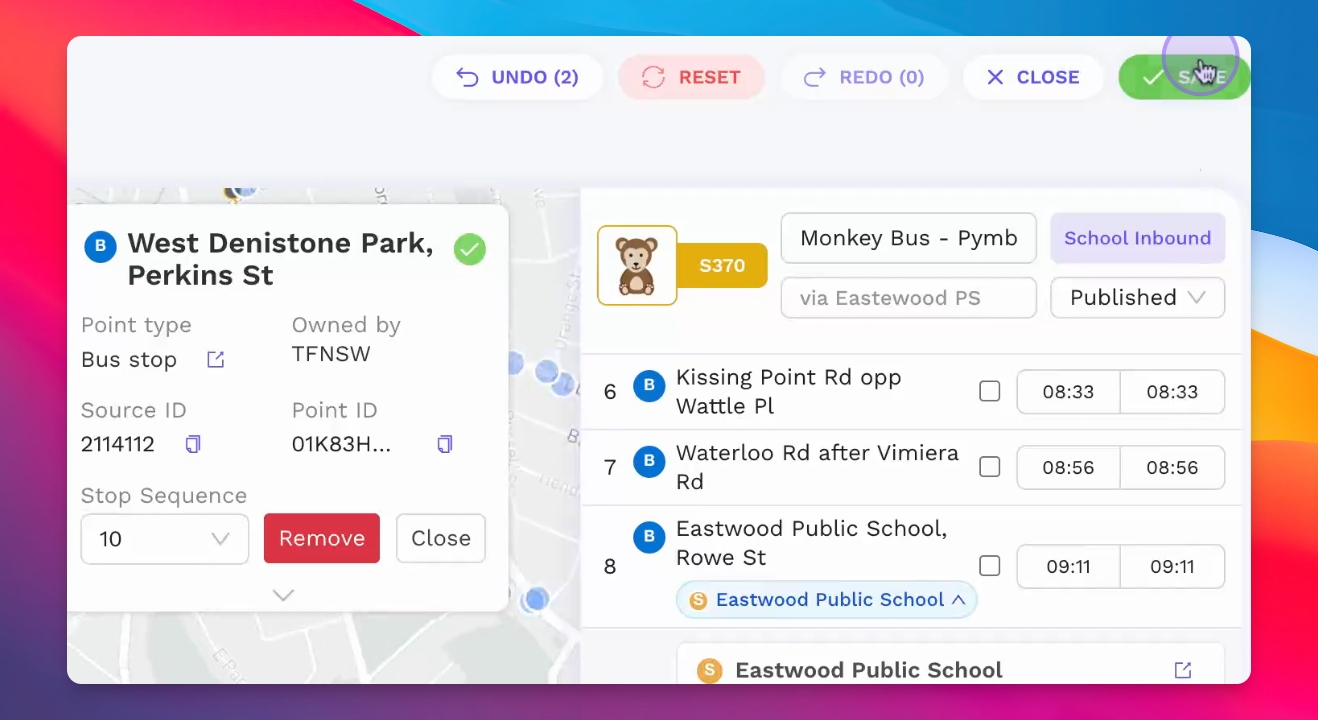
TL;DR
Let's Do It Together!
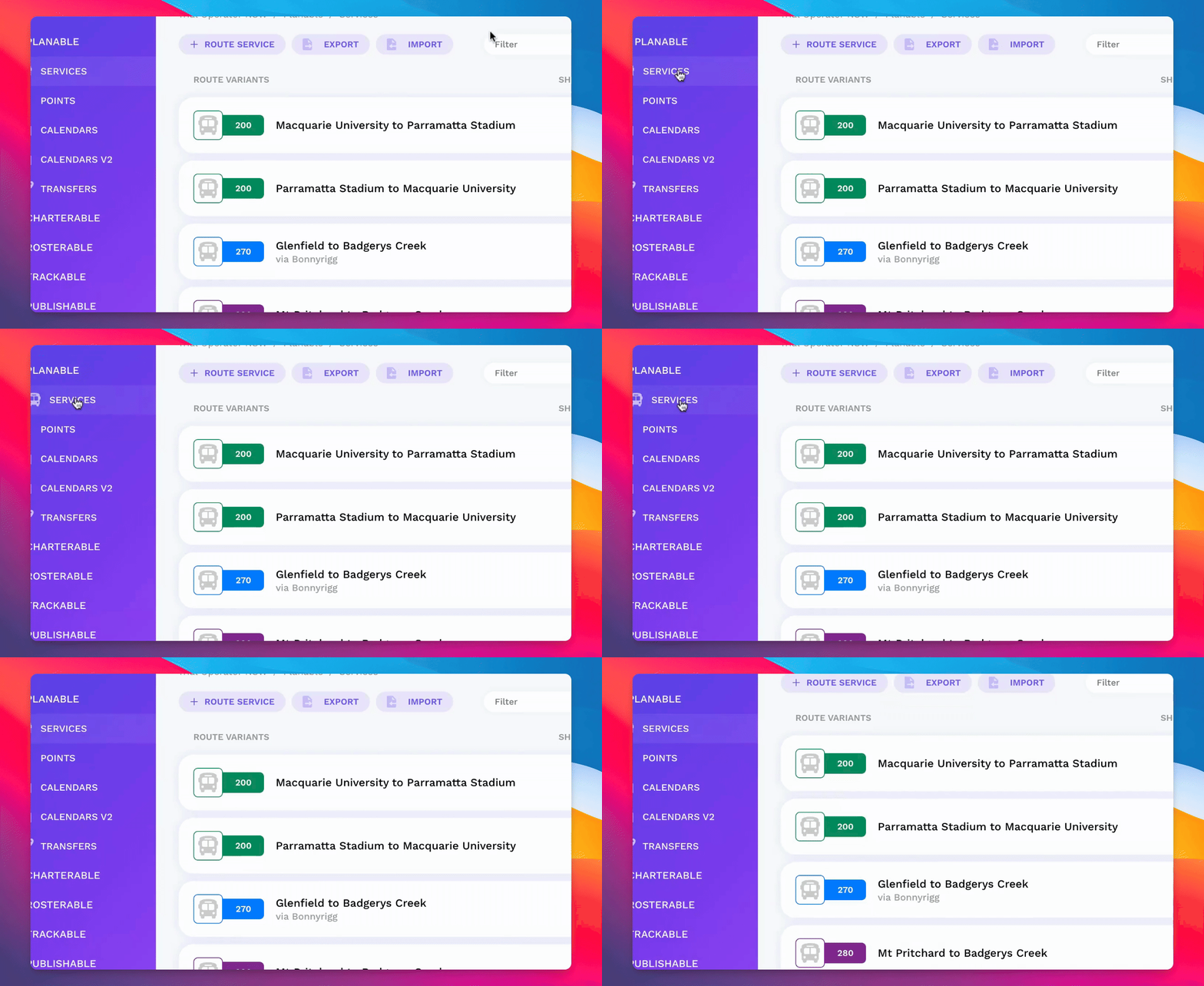
Step 1: Access Route Services
On the left menu, click on Planable Services to view all route services.
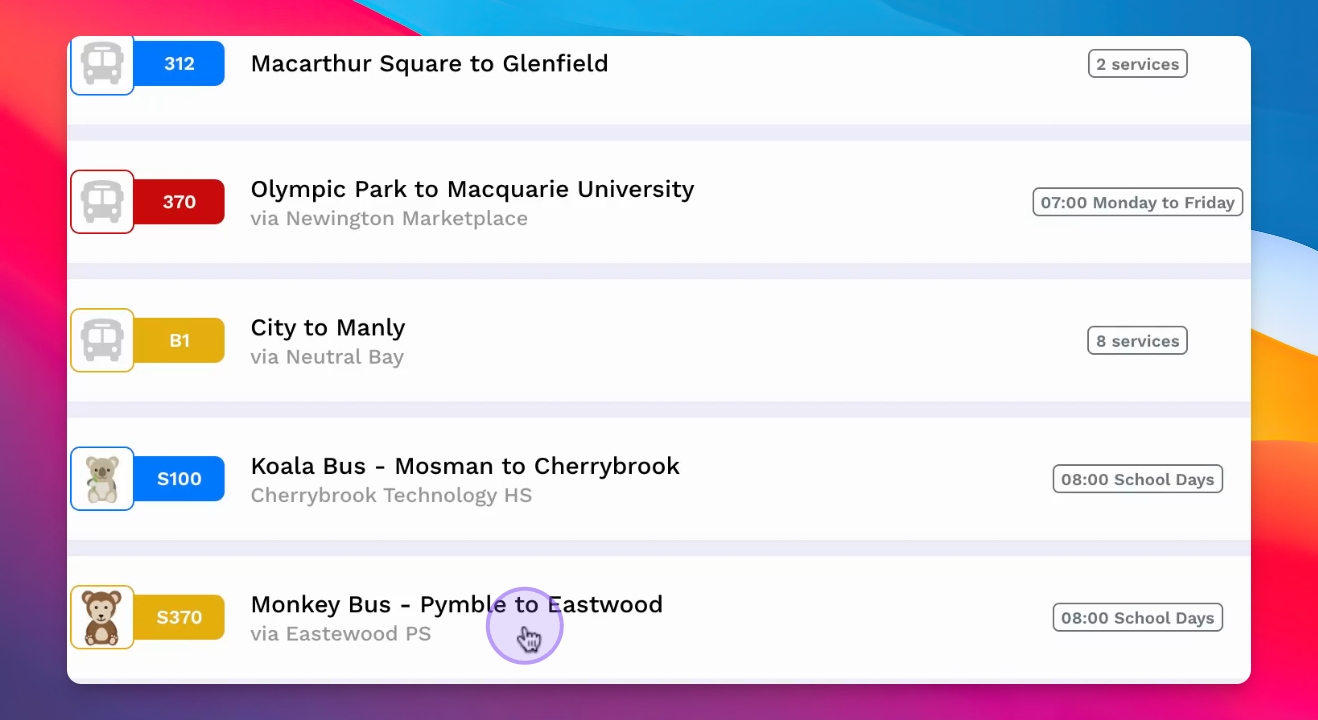
Step 2: View Route Information
Click on a service to display the route on a map, along with stops.
Check the timetable and see serviced schools on the right side.
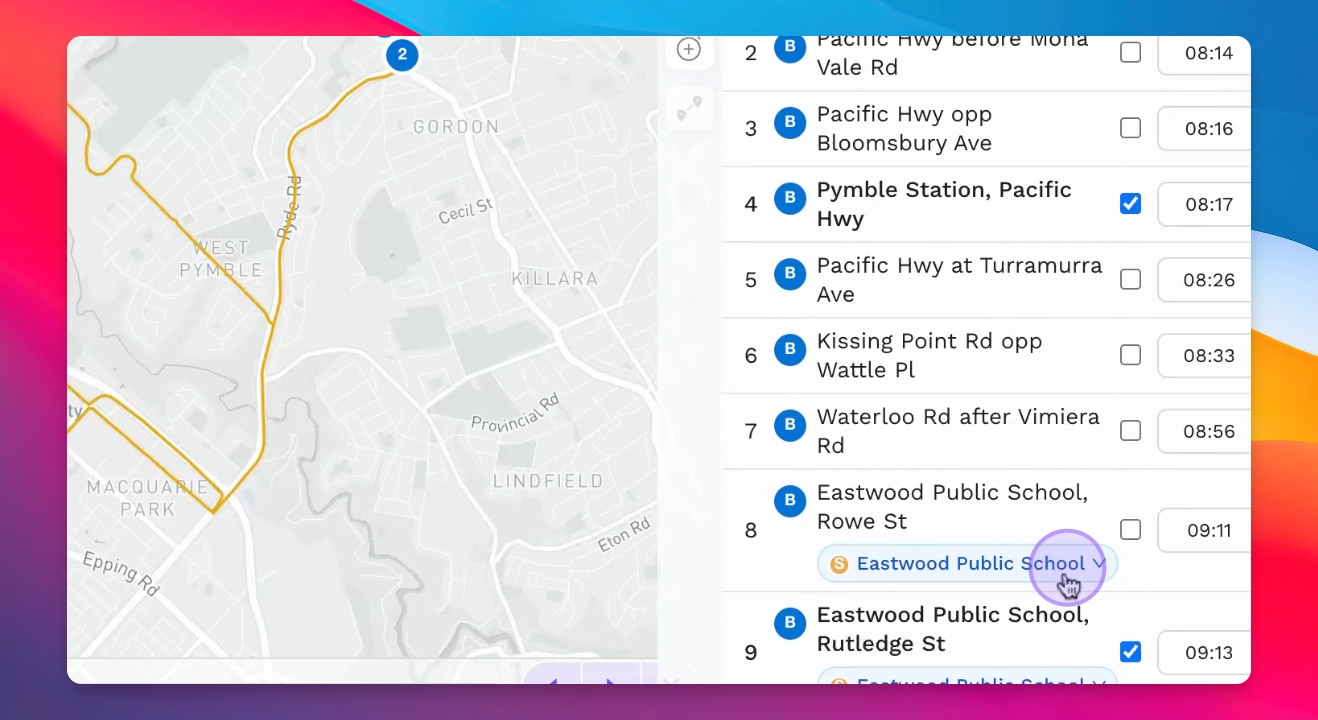
Step 3: Verify School Bell Times
Click on a school to check if the service meets the school bell time criteria.
Confirm the service is within the one-hour school bell time window.
Step 4: Edit the Route
To extend the route, click on the route on the map.
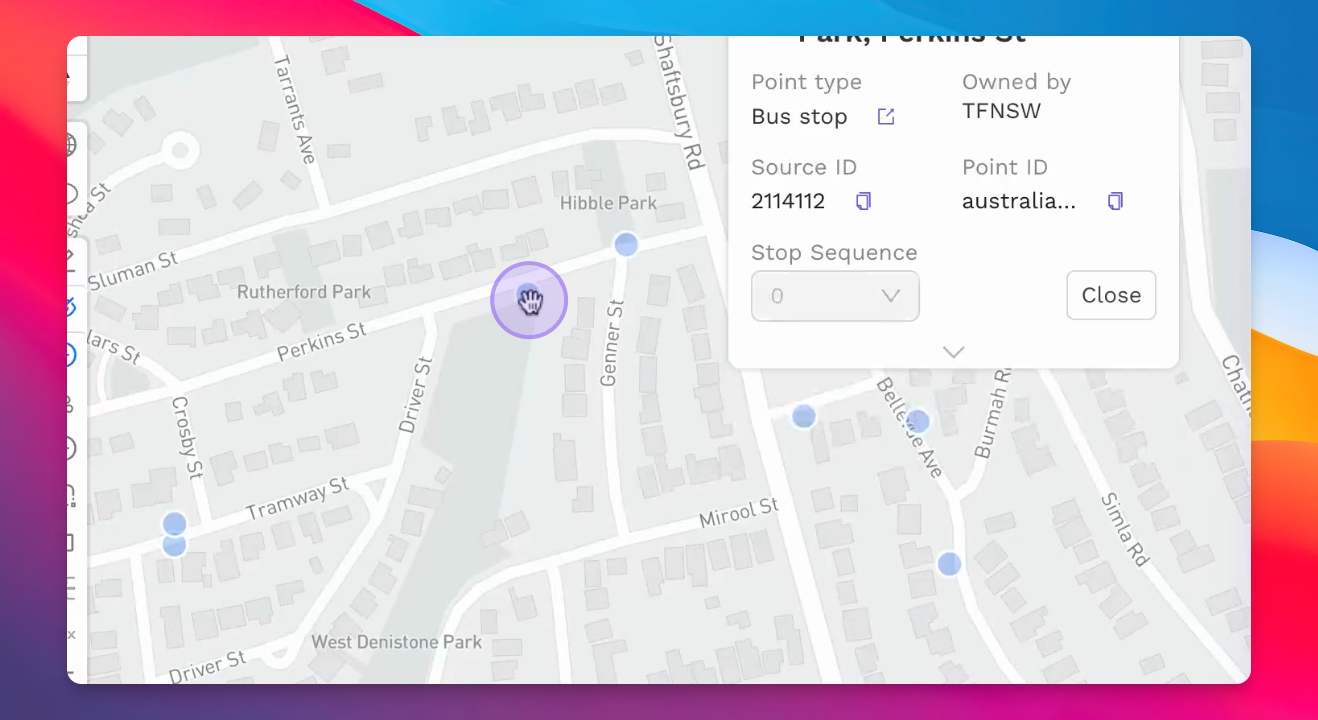
Find the bus stop by toggling on All Points.
This displays all points from the government data set.
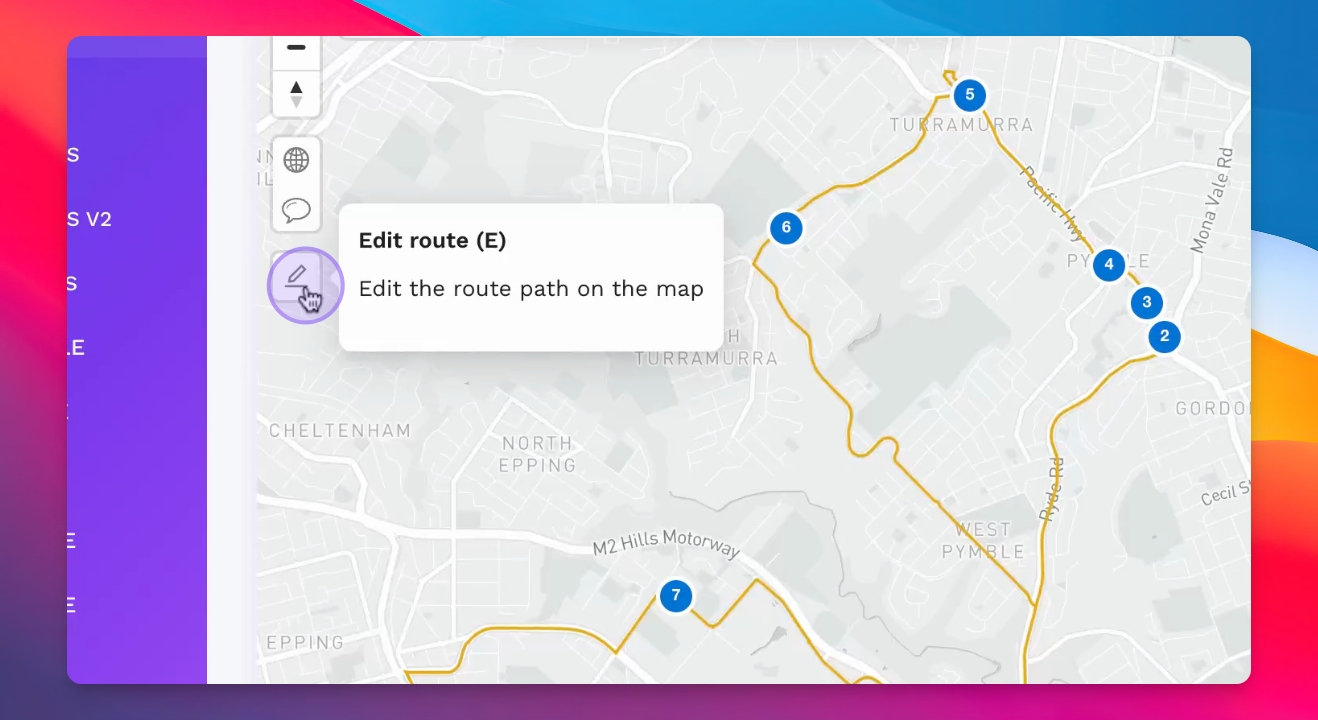
Step 5: Add a New Stop
Click on the desired bus stop to select it.
Click the Add Stop to Route button to include it.
The travel distance and time between the two stops will be automatically calculated.
Step 6: Save Changes
Click on Save to store the updated route information.
Your changes will be published to any relevant websites and services.