TL;DR
1
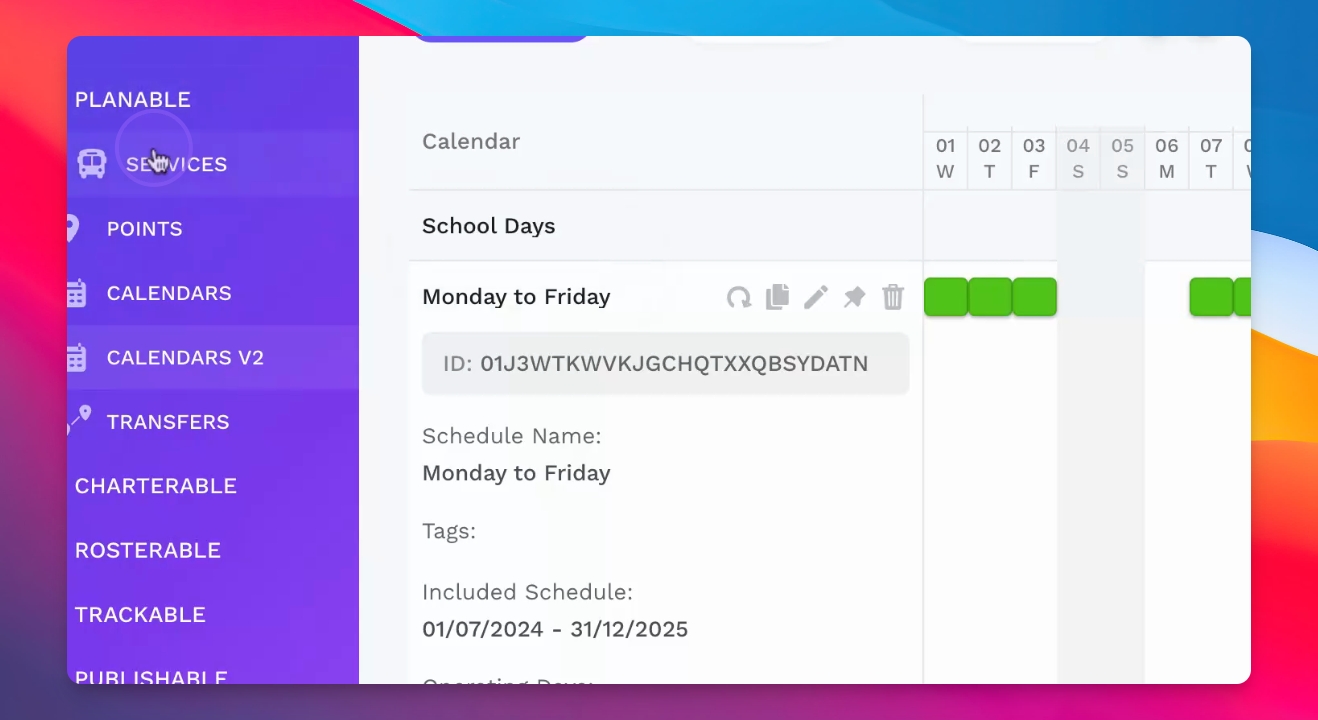
Open Calendar Section
Access the calendar section to view the Gantt chart.
2
View Calendar Info
Click a calendar to see its schedule details.
3
Edit the Calendar
Add or remove information and update the Gantt chart.
4
Exclude Holidays
Select to exclude public holidays from the calendar.
5
Save Calendar
Save changes to use the calendar in services.
Let's Do It Together!
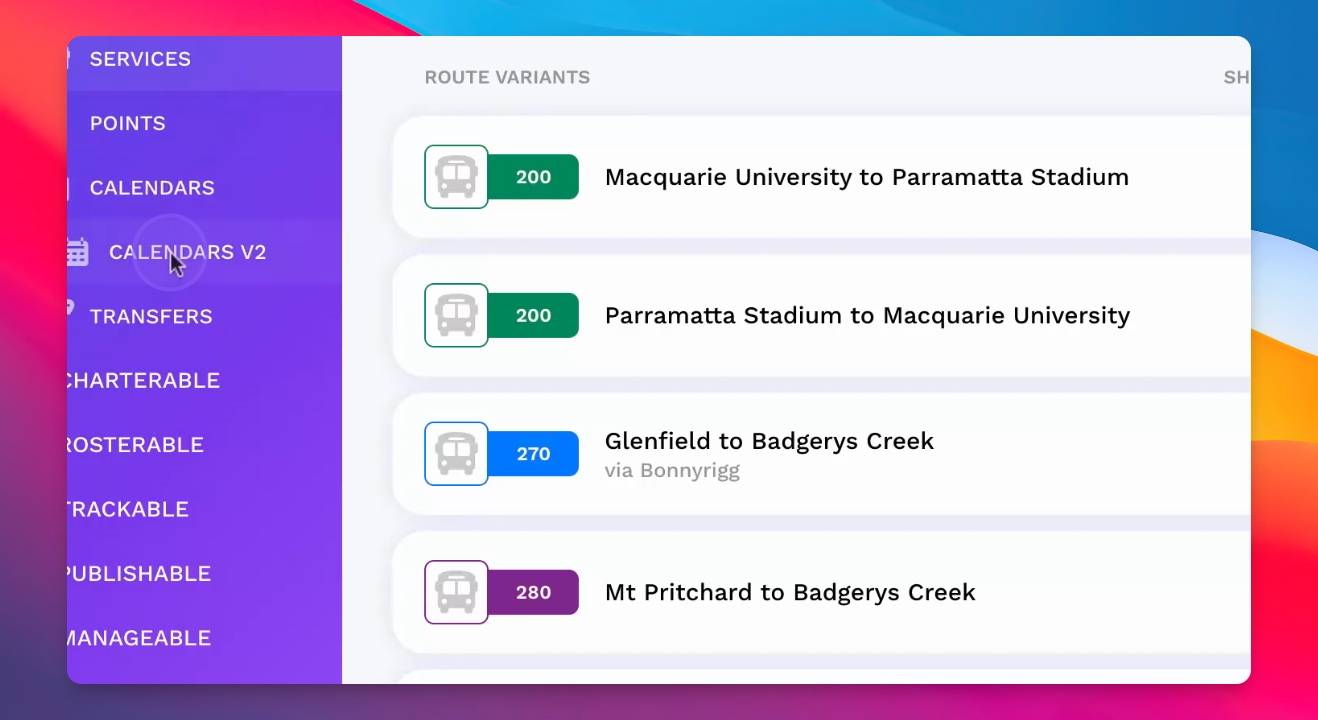
Step 1: Access the Calendar Section
Navigate to the Calendar section to view operating calendars.
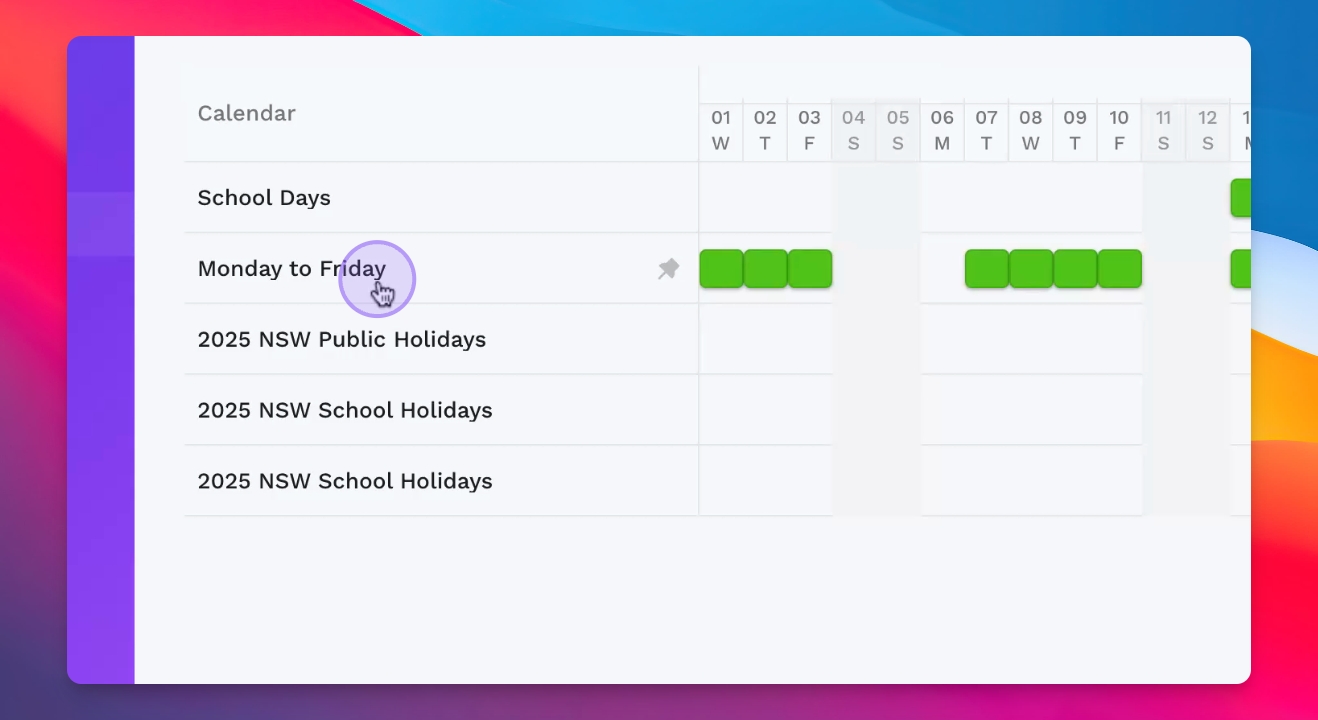
Observe the Gantt chart displaying the operating Day calendar.
Step 2: View Calendar Details
Click on a specific calendar to see detailed schedule information.
Note the operating dates and days for the selected calendar.
Step 3: Edit the Calendar
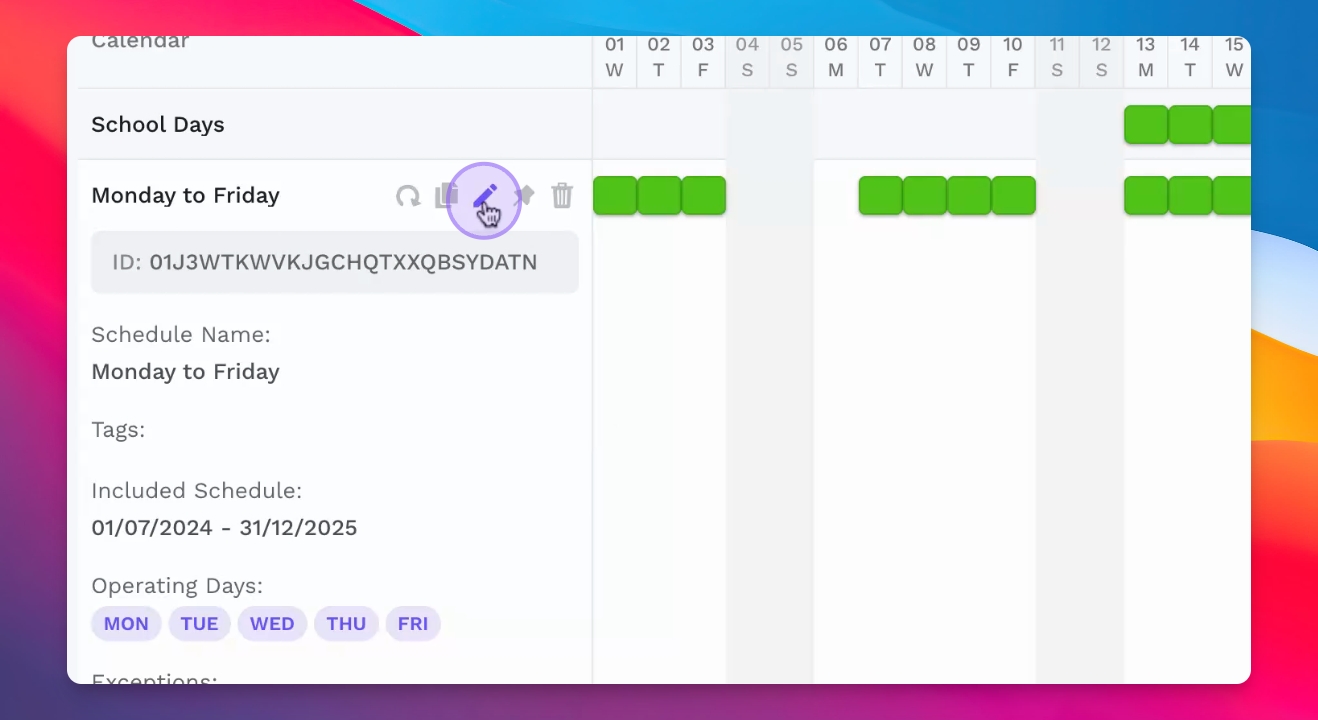
Edit the calendar to add or remove specific information.
Include or exclude calendars as needed.
The Gantt chart will update based on your changes.
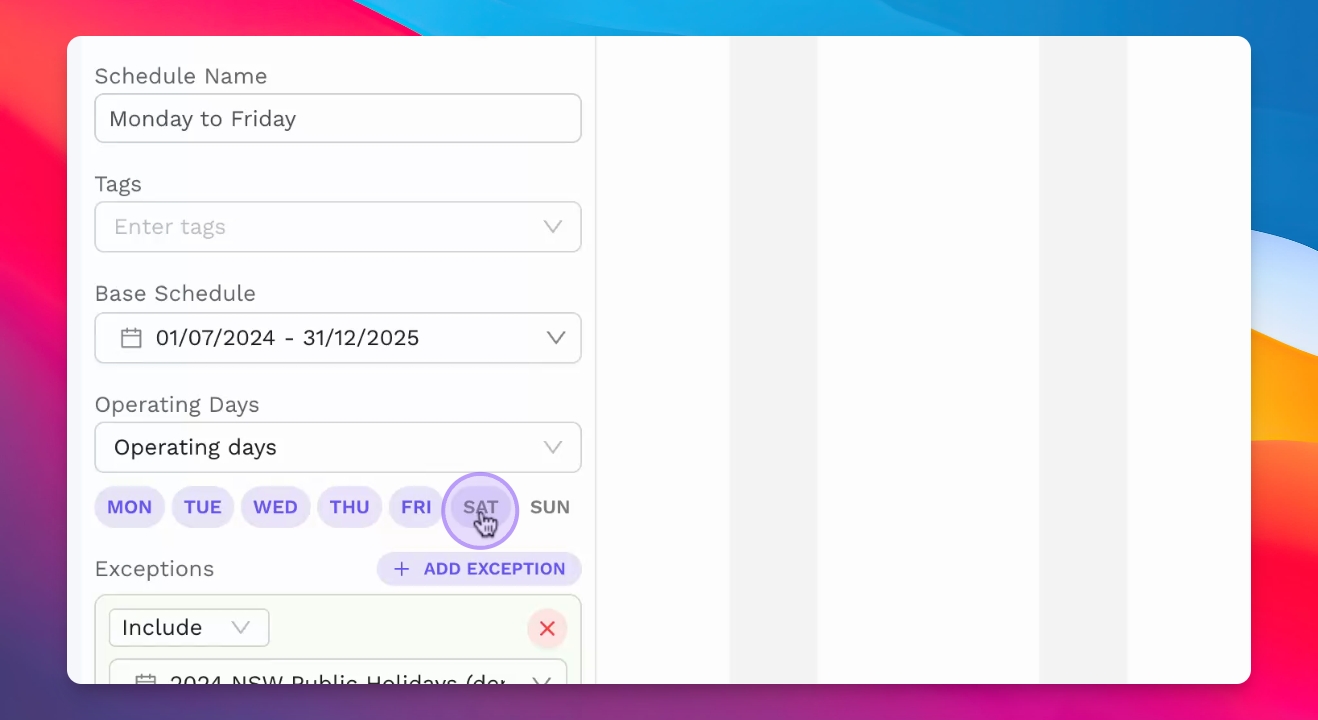
Step 4: Include or Exclude Specific Days
Select days to include or exclude them from the calendar.
For example, to exclude public holidays, click on the New South Wales Public Holiday.
Step 5: Save and Use the Calendar
Once your edits are complete, save the calendar.
You can now use this calendar in any of your services.